- Published on
Best Ways To Make A Header CLARA Desktop With Tailwind CSS
- What is Tailwind CSS?
- The description of Header CLARA desktop ui component
- Why use Tailwind CSS to create a Header CLARA desktop ui component?
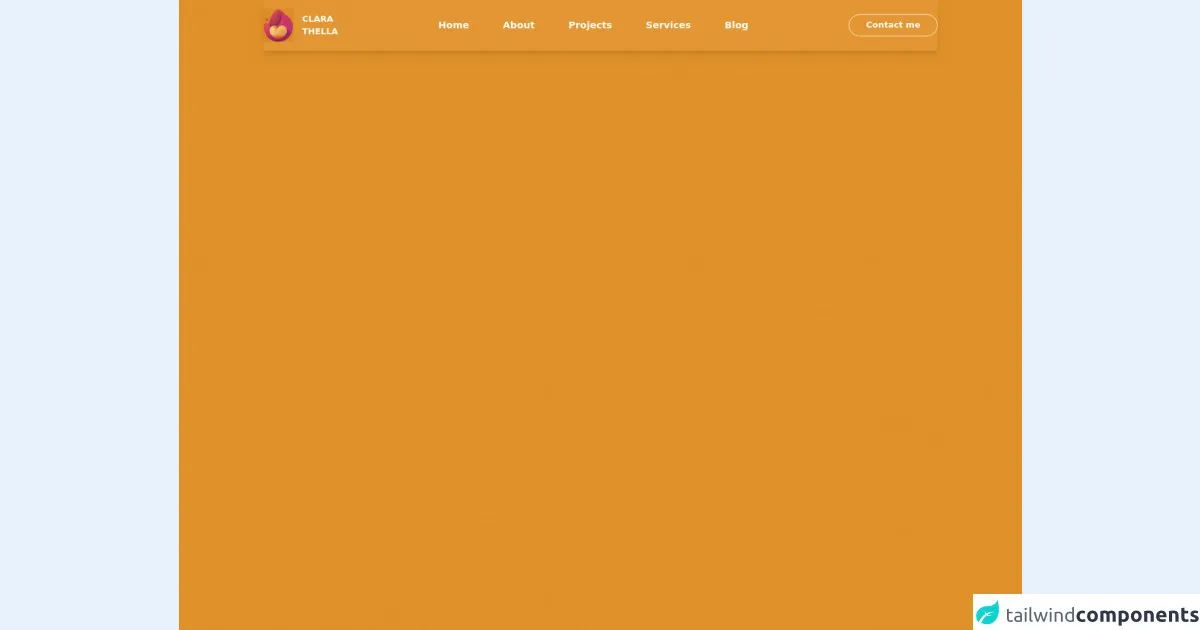
- The preview of Header CLARA desktop ui component
- The source code of Header CLARA desktop ui component
- How to create a Header CLARA desktop with Tailwind CSS?
- Step 1: Create the HTML structure
- Step 2: Add Tailwind CSS classes
- Step 3: Customize the Header CLARA desktop
- Conclusion
What is Tailwind CSS?
Tailwind CSS is a popular utility-first CSS framework that provides a set of pre-defined classes to help developers quickly build responsive and customizable user interfaces. It offers a wide range of pre-designed components and utility classes that can be easily customized to fit any design requirement.
The description of Header CLARA desktop ui component
Header CLARA desktop is a popular user interface component used in web development. It is a fixed header that is typically placed at the top of the page and contains important information such as the website logo, navigation menu, and search bar. The Header CLARA desktop is designed to be responsive and can adapt to different screen sizes.
Why use Tailwind CSS to create a Header CLARA desktop ui component?
Tailwind CSS offers a wide range of pre-designed utility classes that can be used to quickly build a Header CLARA desktop. It provides a flexible and easy-to-use framework that allows developers to customize the Header CLARA desktop to fit their design requirements.
The preview of Header CLARA desktop ui component
The Header CLARA desktop is a fixed header that is typically placed at the top of the page. It contains important information such as the website logo, navigation menu, and search bar.
Free download of the Header CLARA desktop's source code
The source code of Header CLARA desktop ui component
To create a Header CLARA desktop with Tailwind CSS, you can use a combination of HTML and CSS. The HTML code defines the structure of the Header CLARA desktop, while the CSS code defines the styling.
<style>
    body {
        background-color: #e09129 !important;
    }
</style>

<header class="bg-white bg-opacity-5 text-white shadow-lg hidden md:block">
  <div class="container mx-auto flex items-center h-24">
    <a href="" class="flex items-center justify-center">
      <img class="h-16" src="https://i.ibb.co/6Yxs70d/2021-10-26-23h27-03.png" alt="" />
      <span class="ml-4 uppercase font-black">clara<br/>thella</span>
    </a>
    <nav class="contents font-semibold text-base lg:text-lg">
      <ul class="mx-auto flex items-center">
        <li class="p-5 xl:p-8 active">
          <a href="">
            <span>Home</span>
          </a>
        </li>
        <li class="p-5 xl:p-8">
          <a href="">
            <span>About</span>
          </a>
        </li>
        <li class="p-5 xl:p-8">
          <a href="">
            <span>Projects</span>
          </a>
        </li>
        <li class="p-5 xl:p-8">
          <a href="">
            <span>Services</span>
          </a>
        </li>
        <li class="p-5 xl:p-8">
          <a href="">
            <span>Blog</span>
          </a>
        </li>
      </ul>
    </nav>
    <button class="border border-white rounded-full font-bold px-8 py-2">Contact me</button>
  </div>
</header>
How to create a Header CLARA desktop with Tailwind CSS?
To create a Header CLARA desktop with Tailwind CSS, follow these steps:
Step 1: Create the HTML structure
The first step is to create the HTML structure of the Header CLARA desktop. This can be done using the following code:
<header class="bg-white shadow">
  <div class="container mx-auto px-6 py-3">
    <div class="flex items-center justify-between">
      <div class="hidden md:block">
        <a class="text-gray-800 font-bold text-xl" href="#">Logo</a>
      </div>
      <div class="flex items-center">
        <button class="text-gray-800 focus:outline-none md:hidden">
          <svg viewBox="0 0 24 24" class="h-6 w-6 fill-current">
            <path
              fill-rule="evenodd"
              d="M3 18h18v-2H3v2zm0-5h18v-2H3v2zm0-7v2h18V6H3z"
            />
          </svg>
        </button>
        <div class="hidden md:block">
          <a
            class="text-gray-800 hover:text-blue-500 ml-4"
            href="#"
            >Home</a
          >
          <a
            class="text-gray-800 hover:text-blue-500 ml-4"
            href="#"
            >About</a
          >
          <a
            class="text-gray-800 hover:text-blue-500 ml-4"
            href="#"
            >Contact</a
          >
        </div>
        <div class="relative mx-auto text-gray-600 md:block hidden">
          <input
            class="border-2 border-gray-300 bg-white h-10 px-5 pr-16 rounded-lg text-sm focus:outline-none"
            type="search"
            name="search"
            placeholder="Search"
          />
          <button type="submit" class="absolute right-0 top-0 mt-3 mr-4">
            <svg
              class="h-4 w-4 fill-current"
              xmlns="http://www.w3.org/2000/svg"
              viewBox="0 0 20 20"
            >
              <path
                d="M15.555 14.444l-3.607-3.608a5.25 5.25 0 10-.78.78l3.608 3.607a.75.75 0 101.06-1.06zM6.5 10.75a4.25 4.25 0 118.5 0 4.25 4.25 0 01-8.5 0z"
              />
            </svg>
          </button>
        </div>
      </div>
    </div>
  </div>
</header>
Step 2: Add Tailwind CSS classes
The next step is to add Tailwind CSS classes to the HTML code to style the Header CLARA desktop. This can be done using the following code:
<header class="bg-white shadow">
  <div class="container mx-auto px-6 py-3">
    <div class="flex items-center justify-between">
      <div class="hidden md:block">
        <a class="text-gray-800 font-bold text-xl" href="#">Logo</a>
      </div>
      <div class="flex items-center">
        <button class="text-gray-800 focus:outline-none md:hidden">
          <svg viewBox="0 0 24 24" class="h-6 w-6 fill-current">
            <path
              fill-rule="evenodd"
              d="M3 18h18v-2H3v2zm0-5h18v-2H3v2zm0-7v2h18V6H3z"
            />
          </svg>
        </button>
        <div class="hidden md:block">
          <a
            class="text-gray-800 hover:text-blue-500 ml-4"
            href="#"
            >Home</a
          >
          <a
            class="text-gray-800 hover:text-blue-500 ml-4"
            href="#"
            >About</a
          >
          <a
            class="text-gray-800 hover:text-blue-500 ml-4"
            href="#"
            >Contact</a
          >
        </div>
        <div class="relative mx-auto text-gray-600 md:block hidden">
          <input
            class="border-2 border-gray-300 bg-white h-10 px-5 pr-16 rounded-lg text-sm focus:outline-none"
            type="search"
            name="search"
            placeholder="Search"
          />
          <button type="submit" class="absolute right-0 top-0 mt-3 mr-4">
            <svg
              class="h-4 w-4 fill-current"
              xmlns="http://www.w3.org/2000/svg"
              viewBox="0 0 20 20"
            >
              <path
                d="M15.555 14.444l-3.607-3.608a5.25 5.25 0 10-.78.78l3.608 3.607a.75.75 0 101.06-1.06zM6.5 10.75a4.25 4.25 0 118.5 0 4.25 4.25 0 01-8.5 0z"
              />
            </svg>
          </button>
        </div>
      </div>
    </div>
  </div>
</header>
Step 3: Customize the Header CLARA desktop
The final step is to customize the Header CLARA desktop to fit your design requirements. This can be done by modifying the Tailwind CSS classes in the HTML code. For example, you can change the background color of the header by modifying the "bg-white" class to "bg-blue-500".
Conclusion
In conclusion, Tailwind CSS is a great tool for building a Header CLARA desktop. It offers a wide range of pre-designed utility classes that can be used to quickly build and customize the Header CLARA desktop. By following the steps outlined in this article, you can easily create a Header CLARA desktop with Tailwind CSS.